Control WhatsApp from Claude, Cursor or n8n Using Pure Go based MCP server
Have you ever wanted Claude (or another MCP-compatible AI like Cursor) to read your WhatsApp chats, search contacts, pull recent messages, or even send replies and media — all locally and privately?
The whatsapp-mcp-go project makes this possible with a clean, all-Go implementation. It acts as a secure bridge between your personal WhatsApp account and the Model Context Protocol (MCP), so your AI can interact with WhatsApp using natural tool calls.
This guide walks you through how to use it step by step — from initial setup to sending your first message via Claude.
What You’ll Need
- Go 1.22+ installed
- A WhatsApp account on your phone (for QR login)
- Claude Desktop app (or Cursor) — the primary clients that speak MCP
- Optional: FFmpeg (highly recommended if you plan to send voice notes)
- Docker (optional but easiest for quick starts)
No Python, no heavy dependencies — everything compiles to portable binaries.
Quick Start with Docker (Recommended for Most Users)
If you want to skip manual builds and platform quirks:
Clone the repo:
1
2
git clone https://github.com/iamatulsingh/whatsapp-mcp-go.git
cd whatsapp-mcp-go
Start everything with one command:
1
docker compose up
- This launches the WhatsApp bridge (which handles auth and sync).
- Watch the logs: on first run, a QR code appears in the terminal.
- Open WhatsApp → Settings → Linked Devices → Link a Device → Scan the code.
Once linked, the bridge stays connected (re-auth every ~20 days or so).
- The MCP server runs automatically in the compose setup (STDIO mode by default, suitable for Claude Desktop).
Now jump to the “Connect to Claude or Cursor” section below.
Manual Setup (Go Build Way)
1. Start the WhatsApp Bridge
This component maintains the live connection to WhatsApp and stores your chats/messages.
1
2
cd whatsapp-mcp-go/whatsapp-bridge
go run main.go
- First run: Scan the QR code with your phone.
- Subsequent runs: It auto-reconnects using stored session.
- Database: By default uses SQLite in
./store/. You can switch to PostgreSQL by setting env vars (see repo for details).
Leave this terminal open — it’s the always-on bridge.
2. Build and Prepare the MCP Server
The MCP server exposes tools to Claude/Cursor.
1
2
cd ../whatsapp-mcp-server
go build -o whatsapp-mcp
You now have an executable ./whatsapp-mcp.
Connect to Claude Desktop or Cursor
MCP works by telling your AI client to launch the server binary when needed.
Create/edit the config file:
For Claude Desktop (macOS example):
1
# Path: ~/Library/Application Support/Claude/claude_desktop_config.json
1
2
3
4
5
6
7
8
9
10
11
{
  "mcpServers": {
    "whatsapp-mcp": {
      "command": "/full/path/to/whatsapp-mcp-go/whatsapp-mcp-server/whatsapp-mcp"
    }
  },
  "preferences": {
    "sidebarMode": "chat",
    "coworkScheduledTasksEnabled": false
  }
}
For Cursor:
1
# Path: ~/.cursor/mcp.json
Use the same JSON structure.
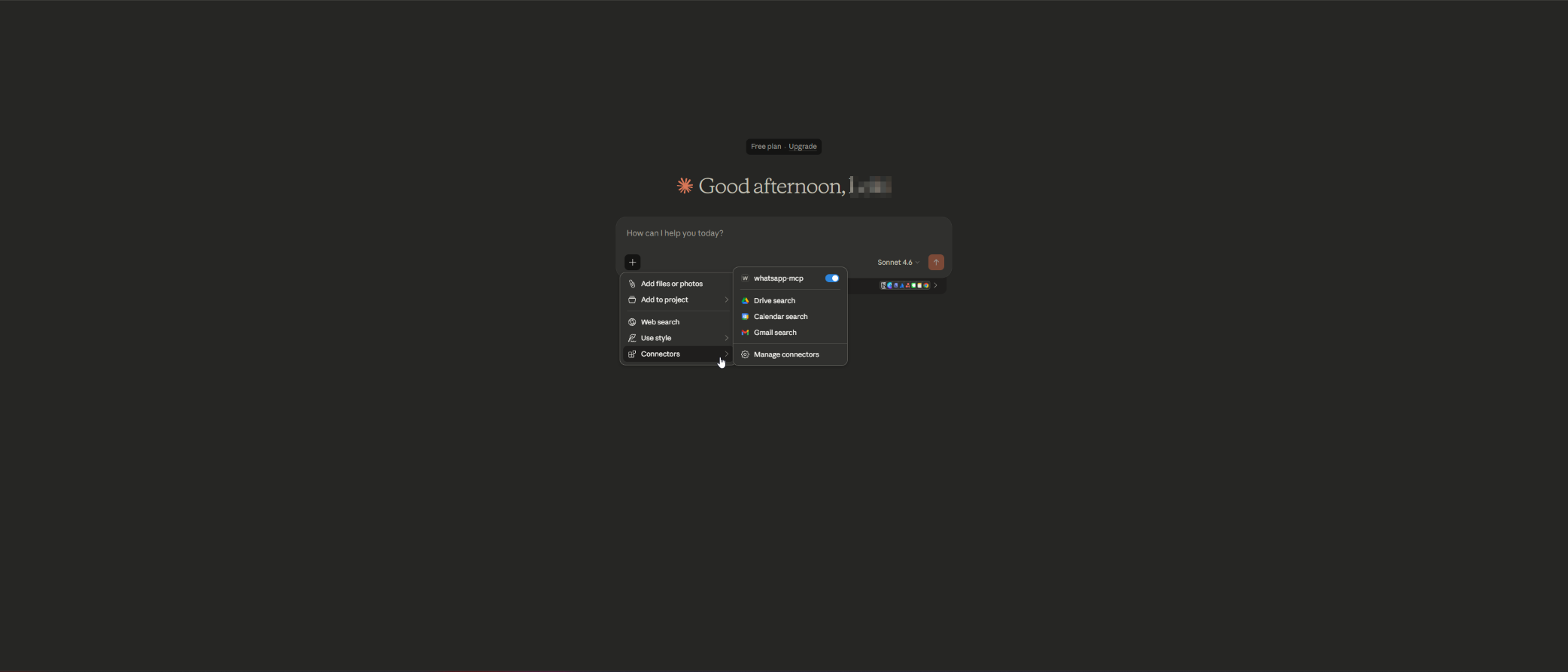
Restart Claude/Cursor after saving. You should see “whatsapp-mcp” appear as an available tool provider in the interface.
Using It in Practice: What Claude Can Do
Once connected, just chat with Claude normally — it discovers and uses the tools automatically when relevant.
Here are common scenarios and example prompts:
Search & Read Chats
“Who did I last message about the project deadline?” → Claude calls
get_last_interaction,list_messages, etc.“Show me the last 10 messages in my family group” → Uses
list_chats→list_messages“Search my contacts for ‘John’ and get our recent conversation” →
search_contacts→get_direct_chat_by_contact→list_messages
Send Messages
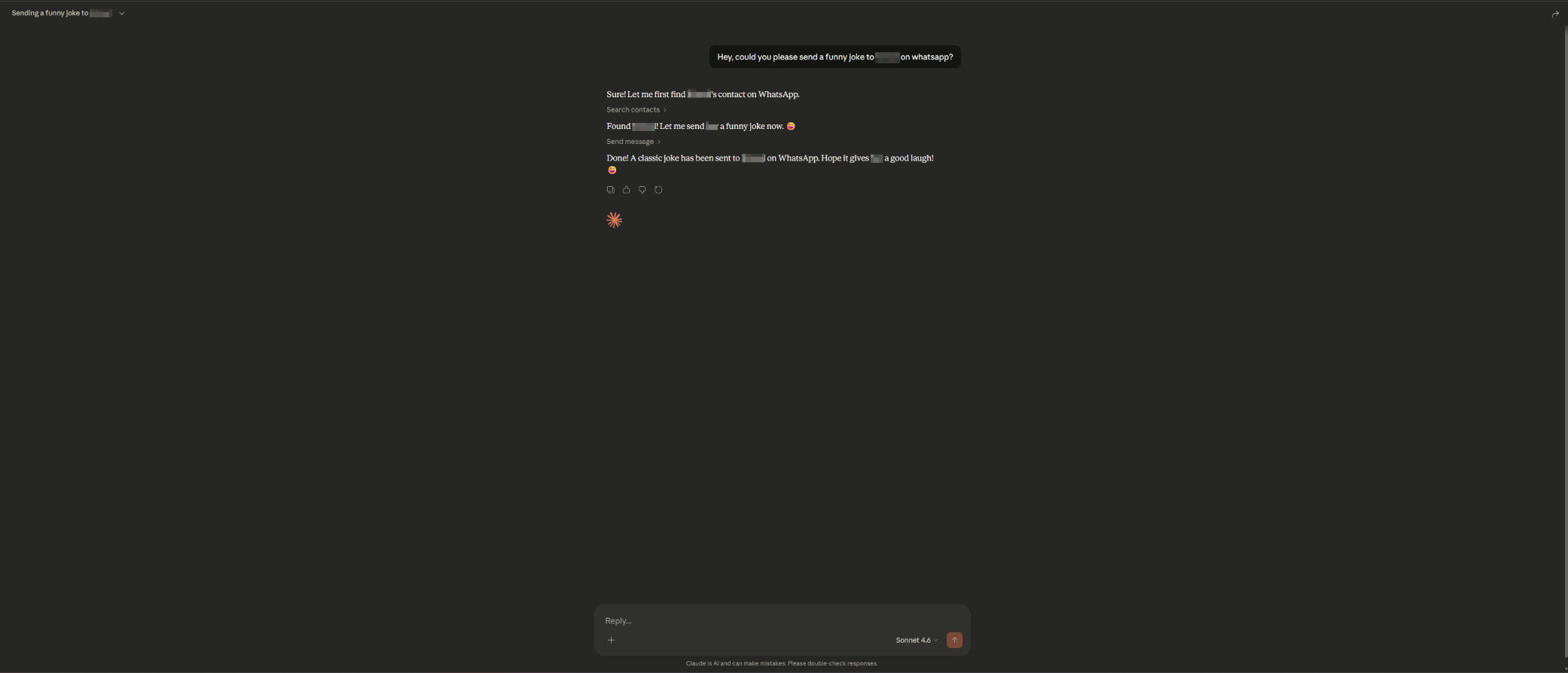
“Reply ‘Sounds good, see you tomorrow’ to John Doe” → Claude finds the contact/JID → calls
send_message“Send a funny meme to the team group” → You upload the image in Claude → it calls
send_filewith path + recipient JID
Voice Notes & Media
“Send a voice note saying ‘I’m running 10 minutes late’ to Sarah” → Upload MP3/WAV → Claude uses
send_audio_message(FFmpeg auto-converts if installed)“Download the photo from message ID abc123 in chat with Mom” →
download_media→ returns local file path → Claude can describe or forward it
Tip: When media is involved, Claude often shows file paths or previews — you can reference them in follow-up prompts.
Tips for Smooth Experience
- Both processes running — Bridge must stay alive; MCP server launches on demand.
- Windows users — Enable CGO + install MSYS2/MinGW if building manually (Docker avoids this).
- Re-authentication — QR appears again after ~20 days or if session breaks.
- Outdated client error — Run
go get -u go.mau.fi/whatsmeow@latestin the bridge dir. - SSE mode — For n8n or other automation, run the MCP server with SSE flag (check
--help). - Privacy — Everything stays local: messages in SQLite/PostgreSQL, no cloud relay.
Demo
Wrapping Up
With whatsapp-mcp-go running, your Claude conversations gain a powerful new dimension — direct, private access to your WhatsApp world. Whether for quick replies, searching old threads, or automating follow-ups, it turns natural language into real messaging actions.
Give it a try — clone, scan once, and start prompting.
Questions or ideas? Open an issue on the repo or ping me.
Happy automating!